



Screen tearing can turn an exciting gaming session into a frustrating experience. If you’re noticing horizontal lines, split frames, or mismatched visuals while playing on your PS5, you’re likely dealing with screen tearing. This visual artifact happens when the GPU and display fall out of sync, causing multiple frames to appear in a single screen draw. Fortunately, the PlayStation 5 has several features and settings that can help eliminate this problem when adjusted correctly. Whether you’re gaming on a 4K television, a high-refresh-rate monitor, or even through capture cards, solving screen tearing starts with understanding the core of the issue and tweaking your setup accordingly. In this article, we’ll guide you through effective methods to fix PS5 screen tearing and create the ultra-smooth gaming experience you’re looking for. You’ll also find tips to optimize your system, troubleshoot compatibility issues, and when necessary, turn to professional solutions like PS5 Repair in Cooper City, FL.
Understanding Screen Tearing and Its Causes
Screen tearing occurs when the display shows information from multiple frames in a single screen draw. This usually happens when the refresh rate of your monitor or TV is not synchronized with the frame output of your console. Unlike lag or stuttering, screen tearing manifests as a visible misalignment, typically as a horizontal split that interrupts the fluid motion of gameplay. The root of the issue often lies in mismatched refresh rates, disabled sync technologies, or using non-compatible cables and display settings. Understanding what’s triggering the problem is the first step to resolving it effectively.
Checking Your Display Settings for Compatibility
Your PS5 offers several output configurations that can impact screen performance. If screen tearing is present, start by checking whether your display supports HDMI 2.1 or at least HDMI 2.0 for smoother frame transitions. Go to the “Screen and Video” section in your PS5 settings and verify the resolution and refresh rate options available. Sometimes, using a resolution that your TV or monitor doesn’t fully support can lead to tearing. It’s also essential to match the video output with your display’s native resolution to avoid scaling conflicts that contribute to tearing.
The Role of V-Sync and How It Affects Your PS5
While Vertical Sync (V-Sync) is a common solution for screen tearing in PC gaming, the PS5 handles synchronization differently. Games developed for PS5 often include built-in V-Sync functionality, but enabling the system-level settings for smoother video transitions can help. In certain cases, screen tearing can still occur if V-Sync is inconsistently applied across different games. You can often find frame rate and performance mode toggles within the individual game settings. Activating these can help maintain a more consistent output, minimizing the chances of tearing during fast-motion scenes or graphically intense sequences.
HDMI Cables and Ports: Why Quality Matters
The importance of using high-quality, certified HDMI 2.1 cables cannot be overstated when trying to eliminate screen tearing. Older HDMI cables may not transmit data fast enough, especially if you’re playing at 120Hz or using features like HDR. Additionally, inspect the HDMI port on your PS5 and the input on your display. If there’s any damage, you might experience intermittent screen issues, including tearing. Replacing an older cable or using a different HDMI port can immediately improve synchronization and visual clarity. At Techy Cooper City, we specialize in HDMI port replacements and upgrades if your console needs a professional touch.
Enabling Game Mode on Your Display
Modern TVs and gaming monitors often come with a “Game Mode” setting that optimizes display performance for low latency and smoother motion. Game Mode reduces image processing done by the TV, allowing the frames from your PS5 to display more quickly and in sync with your console’s output. If screen tearing occurs, check if Game Mode is disabled. Activating it can drastically reduce visual artifacts and enhance the overall experience. Some advanced displays even feature Variable Refresh Rate (VRR) under Game Mode, which is an advanced fix for screen tearing when supported.
Variable Refresh Rate (VRR) and PS5 Compatibility
Variable Refresh Rate (VRR) is a game-changing feature designed to eliminate screen tearing by allowing your display to dynamically match the frame rate output of your PS5. As of recent firmware updates, the PS5 supports VRR over HDMI 2.1 connections. If your TV or monitor is VRR-compatible, enable it both in your display settings and the PS5 system menu. VRR works particularly well for fast-paced titles like racing games or shooters where screen tearing is most noticeable. Keep your firmware updated to ensure optimal VRR performance and stability across titles.
Update Your System and Game Software
Screen tearing can sometimes stem from outdated system software or buggy game versions. Regular updates often include patches that address performance issues, including rendering glitches and screen artifacts. Go to Settings > System > System Software > System Software Update and Settings to ensure your PS5 is current. Do the same for individual games through the game icon’s options menu. Developers are constantly improving compatibility with newer displays and refresh rates, so staying updated can make a noticeable difference in your gameplay visuals.
Choosing the Right Performance Mode for Each Game
Many PS5 games offer different performance modes like “Fidelity” or “Performance.” Fidelity mode focuses on higher resolution and detailed graphics, whereas Performance mode prioritizes frame rate. Screen tearing can be more frequent in Fidelity mode if the frame rate isn’t stable. Switching to Performance mode often results in smoother gameplay and can mitigate tearing issues. Test both options in your favorite games and see which delivers the most consistent visual output. Tearing often occurs in cutscenes or high-action gameplay, so adjust accordingly based on where you notice it most.
Diagnosing Hardware-Related Problems
While most screen tearing is software or setting-related, persistent issues could point to deeper hardware problems. A faulty HDMI port, malfunctioning GPU, or even internal overheating may contribute to screen anomalies. Over time, dust buildup can reduce internal airflow and cause the PS5 to throttle performance, leading to irregular frame outputs. If you’ve ruled out settings and cable issues but still see screen tearing, a thorough internal inspection may be necessary. That’s where expert diagnostics come into play, especially if you’re considering professional PS5 Repair in Cooper City, FL.
When to Consider a Monitor Upgrade
If you’ve exhausted all other solutions and screen tearing persists, your display could be the limiting factor. Older TVs and monitors without VRR or with refresh rates capped at 60Hz may struggle to handle the PS5’s power. Investing in a 120Hz monitor or HDMI 2.1-supported TV can dramatically reduce screen tearing. Look for models that support native VRR, Auto Low Latency Mode (ALLM), and high dynamic range (HDR). These features ensure your display is working harmoniously with the PS5, delivering the fluid motion and crisp visuals the console is capable of.
How Capture Cards Can Introduce Tearing
For gamers who stream or record gameplay, screen tearing might stem from the use of capture cards. Some older or low-quality capture devices may not fully support 60Hz or 120Hz passthrough, leading to frame mismatches. If you notice tearing while streaming but not during regular gameplay, test your setup without the capture card. Alternatively, use a high-end card that supports HDMI 2.1 passthrough and is compatible with the PS5’s display features. Streamers should also match output resolutions between the console, capture device, and broadcasting software to maintain fluid visuals.
Resetting Video Output Safely
If all else fails, you can reset your PS5’s video output to ensure default settings are in place. Power down the console completely, then hold the power button until you hear a second beep (around seven seconds). This starts your PS5 in safe mode. From there, choose “Change Video Output” and reset to the default automatic setting. This can clear up any mismatched resolutions or frame rate conflicts that might have developed due to display switching or game setting changes. Be cautious with safe mode operations, and always back up data when needed.
When to Seek Professional Repair Help
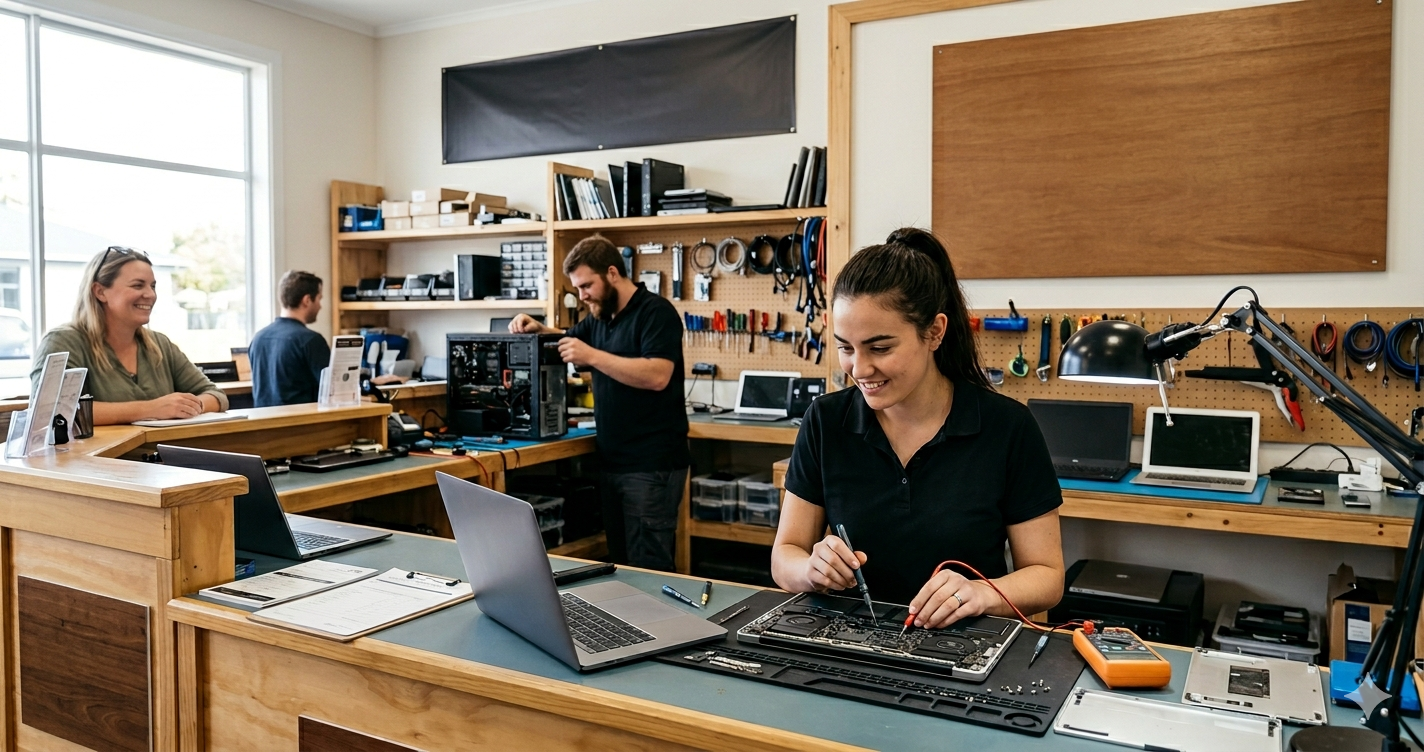
If screen tearing continues after you’ve tried all software and display fixes, it’s time to consider professional assistance. Faulty ports, internal GPU issues, or board-level malfunctions can all contribute to video output problems. Attempting internal repairs without proper tools can risk further damage. At Techy Cooper City, we specialize in fast, reliable PS5 repair services to get you back in the game. Whether you’re dealing with HDMI port issues, overheating, software glitches, or power problems, our expert technicians are equipped to handle it all. We understand how important your console is, so we work efficiently to restore peak performance and ensure your PlayStation 5 runs like new.
Conclusion: Enjoying a Tear-Free PS5 Experience
Screen tearing might seem like a small issue, but it can significantly affect your gaming immersion. Fortunately, the PS5 offers multiple ways to combat this visual hiccup, from enabling VRR to using the right HDMI cables and updating system software. By optimizing your settings, using compatible equipment, and maintaining your console’s hardware health, you can enjoy smooth, uninterrupted gameplay. If DIY fixes don’t work, professional services can ensure your system is operating at its best. Keep your setup fine-tuned, your firmware updated, and your display aligned, and you’ll get the performance your PS5 was built to deliver.
click here to visit website









Leave a Reply