Random Access Memory (RAM) is a crucial component of your computer, responsible for temporarily storing data that the processor needs for quick access. Upgrading or replacing RAM can improve system performance, but if your computer starts freezing after installing new RAM, it signals an issue that must be addressed. The problem could stem from incompatibility, installation errors, or faulty hardware. Identifying the root cause and fixing it ensures that your system runs smoothly and efficiently.
Common Causes of Computer Freezing After a RAM Upgrade
1. Incompatible RAM Modules
One of the most common reasons your computer freezes after a RAM upgrade is incompatibility. Not all RAM modules work with every motherboard. If the new RAM sticks do not match the existing hardware specifications, your system may experience instability.
How to Check for Compatibility:
- Refer to your motherboard’s manual to verify the supported RAM types, speeds, and capacities.
- Use an online compatibility checker from your motherboard or RAM manufacturer.
- Ensure all RAM sticks have the same frequency, latency, and voltage requirements.
2. Improper Installation
Improperly installed RAM can lead to system freezes, boot failures, or even hardware damage. RAM sticks must be securely and correctly placed in the designated slots to function properly.
Steps to Ensure Proper Installation:
- Power off the computer and unplug it before installing RAM.
- Align the notches on the RAM stick with the memory slot.
- Firmly press down until the side clips snap into place.
- Try reseating the RAM, ensuring each module is properly locked in.
3. Faulty or Defective RAM Sticks
New RAM modules can be defective right out of the box. Faulty RAM can cause crashes, freezing, and system instability.
How to Test RAM for Defects:
- Run Windows Memory Diagnostic Tool (built into Windows) to detect memory issues.
- Use MemTest86, a third-party tool, to run extensive tests.
- If errors appear, try testing each RAM stick individually to identify the faulty module.
4. BIOS Settings Not Updated
Outdated BIOS firmware may not recognize or support newly installed RAM, leading to freezing issues. Some systems require a BIOS update to enable higher-capacity or high-frequency memory.
How to Update BIOS:
- Check your motherboard manufacturer’s website for the latest BIOS version.
- Follow their instructions carefully to update safely.
- Reset BIOS settings to default and then adjust configurations as needed.
5. Power Supply Issues
Your power supply unit (PSU) must support the additional power required by new RAM. If your system is underpowered, it might freeze or crash unexpectedly.
Ways to Check PSU Sufficiency:
- Use a PSU calculator to estimate power requirements.
- Test with a higher wattage power supply if available.
- Ensure all power connectors are securely attached to the motherboard.
Troubleshooting Steps to Fix Freezing Issues
Step 1: Remove and Reinstall the RAM
Start by removing the newly installed RAM and reattaching it carefully. If the system still freezes, try swapping RAM sticks between slots.
Step 2: Test RAM Modules One by One
If multiple RAM sticks are installed, test them individually to identify whether a single module is causing the problem.
Step 3: Reset BIOS to Default Settings
Resetting BIOS to factory defaults can eliminate configuration conflicts related to RAM installation.
Step 4: Check for Overheating
Adding RAM can sometimes increase system temperature. Ensure that cooling systems, including fans and heat sinks, are functioning properly.
Step 5: Run System in Safe Mode
Booting into Safe Mode can help determine if third-party software or drivers are causing conflicts. If your computer runs smoothly in Safe Mode, software-related issues may be to blame.
When to Seek Professional Help
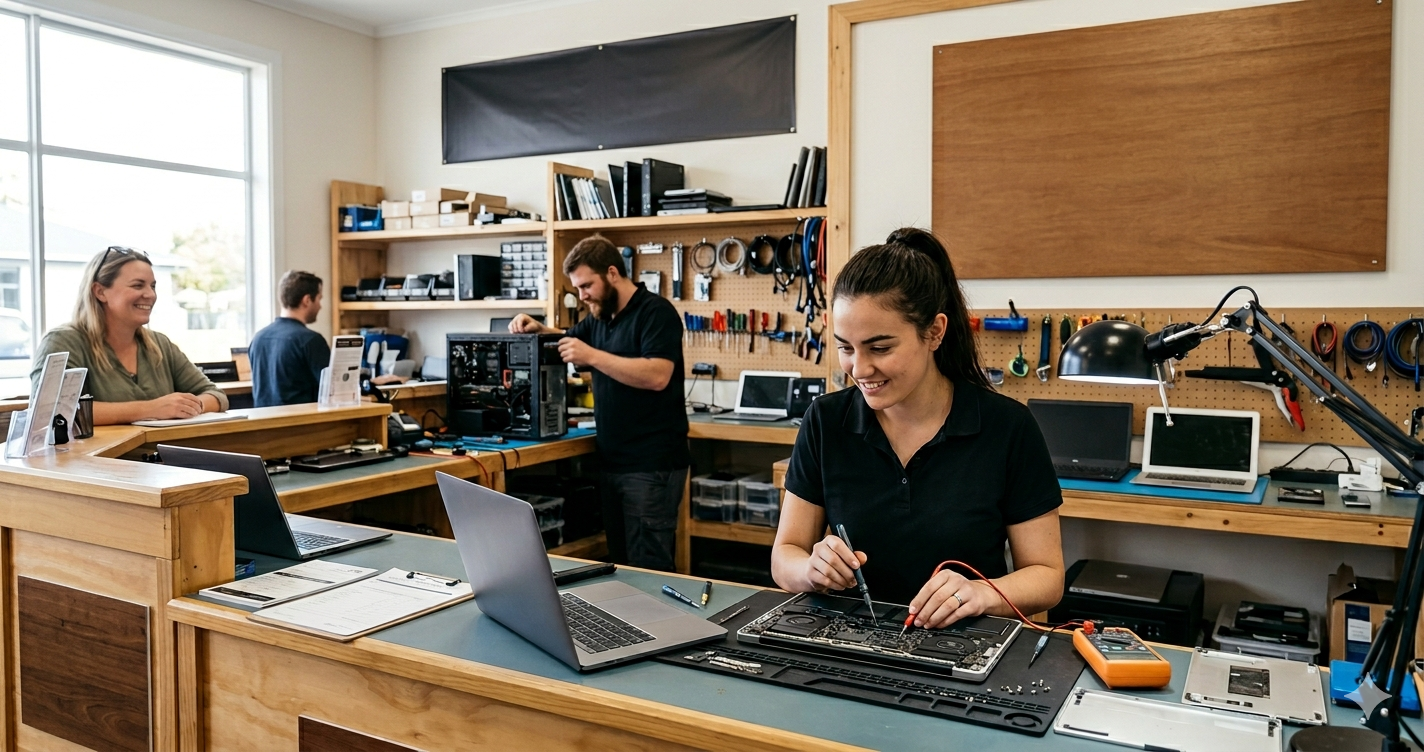
If you have tried all troubleshooting steps and the freezing issue persists, seeking professional assistance is recommended. Computer Repair in Cooper City, FL services can diagnose and resolve complex hardware issues efficiently.
Techy Cooper City offers unparalleled computer repair services, specializing in comprehensive solutions for PCs, laptops, MacBooks, and iMacs. Our facility is equipped with the latest diagnostic tools, and our team comprises highly trained technicians who are adept at resolving any tech issue you might encounter.
At Techy Cooper City, we understand the crucial role your computer plays in both your personal and professional life. We are committed to delivering repairs that not only fix your issues but also enhance the overall performance and longevity of your device.